
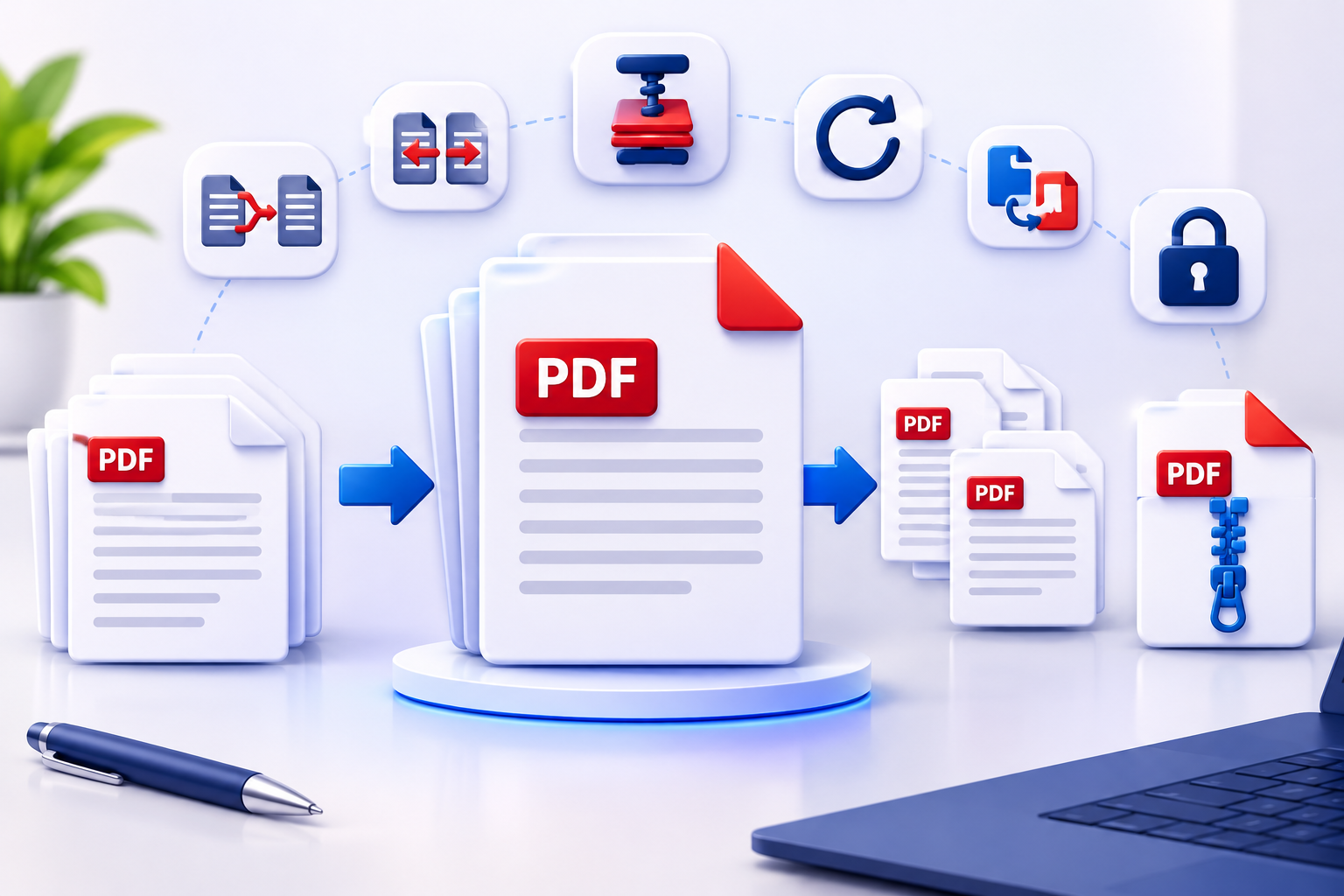
PDF files are used everywhere, from business reports and invoices to school assignments, contracts, presentations, and digital forms. Their ability to preserve formatting across different devices makes them one of the most convenient document formats available.
However, working with PDF files isn't always straightforward. Sometimes you need to combine multiple documents, extract specific pages, reduce a large file size, convert a PDF into Word, or make changes to an existing document.
The good news is that you don't need expensive desktop software for everyday PDF tasks. With modern online PDF tools, you can manage documents directly from your browser.
In this guide, we'll explore the most useful ways to manage PDF files online and explain which tools can make your daily document workflow easier.
1. Merge Multiple PDF Files into One Document
One of the most common PDF tasks is combining multiple documents into a single file.
For example, students may need to combine lecture notes, while professionals might want to merge invoices, contracts, or project reports.
A PDF merger makes this process simple:
Open an online Merge PDF tool.
Upload the PDF documents you want to combine.
Arrange the files in your preferred order.
Start the merging process.
Download your combined PDF.
Merging documents helps keep related information organized and makes sharing multiple files much easier.
2. Split Large PDF Files into Smaller Documents
Sometimes a PDF contains dozens or hundreds of pages, but you only need a small section.
Instead of sharing the entire document, you can use a PDF splitting tool to extract specific pages.
For example:
Extract a particular chapter from an eBook.
Separate individual invoices from a combined document.
Create smaller reports from a large PDF.
Share selected pages without sending the entire file.
A Split PDF tool allows you to divide documents by page ranges or individual pages, depending on the available options.
3. Compress PDF Files Without Unnecessary File Size
Large PDF files can create problems when uploading documents to websites, sending email attachments, or sharing files through messaging applications.
PDF compression helps reduce file size by optimizing images, fonts, and other document elements.
Here are some situations where compression is useful:
Email attachments have file size restrictions.
Websites require smaller document uploads.
Large reports take too long to download.
You want to save storage space.
For the best results, choose a compression level that balances file size and document quality. Always review the compressed file to make sure important text and images remain readable.
4. Convert PDF Files into Word and Excel Documents
PDF is excellent for sharing documents, but editing its contents can be difficult.
Converting PDF files into editable formats makes it easier to reuse information.
PDF to Word
Use PDF to Word when you need to modify paragraphs, update reports, edit text, or reuse existing document content.
PDF to Excel
PDF to Excel is useful when extracting tables, financial information, or structured data from PDF reports.
PDF to PowerPoint
Convert PDF presentations into PowerPoint format when you need to reuse or modify presentation slides.
Remember that complicated layouts, scanned documents, and unusual fonts may not convert perfectly. OCR technology can help recognize text in scanned documents.
5. Convert Word, Excel and Images into PDF
Converting documents into PDF is equally important.
A PDF helps preserve the original document layout when sharing files with clients, colleagues, teachers, or customers.
Some useful conversions include:
Word to PDF for reports and professional documents.
Excel to PDF for spreadsheets and financial statements.
PowerPoint to PDF for presentations and handouts.
JPG to PDF for photographs and scanned pages.
PNG to PDF for graphics and screenshots.
HTML to PDF for saving web pages.
These conversions make documents easier to distribute, print, and archive.
6. Edit and Organize Existing PDF Documents
PDF management involves more than simply converting files.
You may also need to make small adjustments to existing documents.
Useful editing and organization tasks include:
Rotate pages that appear upside down.
Remove unwanted or blank pages.
Rearrange pages into the correct order.
Add headers and footers.
Insert images into PDF documents.
Add page labels for easier navigation.
Crop unnecessary margins.
Change document text and visual elements.
Using dedicated tools for these tasks can save considerable time compared with recreating an entire document.
7. Protect PDF Documents and Manage Privacy
PDF documents sometimes contain confidential or sensitive information.
Password protection and redaction tools can help improve document security.
Here are some useful options:
Protect PDF: Add password protection to restrict access to a document.
Redact PDF: Permanently remove selected sensitive information from a document.
Add Watermark: Place text or image watermarks on pages to identify ownership or document status.
Remove PDF Metadata: Remove hidden document information that may reveal author details or other metadata.
Always verify that redacted information cannot be recovered by selecting, copying, or extracting content from the resulting PDF.
For highly confidential documents, review the service's privacy and file-handling policies before uploading.
8. Why Use Online PDF Tools Instead of Desktop Software?
Online PDF tools offer several advantages for everyday document management.
No Installation Required
You can access tools through a modern web browser without installing additional software.
Works Across Devices
Use compatible online tools from desktop computers, laptops, tablets, and smartphones.
Quick Document Processing
Complete common PDF tasks without opening a large desktop application.
Multiple Tools in One Place
Instead of searching for separate applications, you can use a single platform for converting, editing, organizing, and protecting documents.
Convenient Access
Online tools are particularly useful when working from different computers or locations.
9. Who Can Benefit from Online PDF Tools?
Almost anyone who works with digital documents can benefit from an online PDF toolkit.
Students: Combine assignments, organize study notes, and convert educational documents.
Teachers: Prepare worksheets, organize learning materials, and distribute PDF resources.
Freelancers: Manage client proposals, invoices, contracts, and project documents.
Businesses: Organize reports, process invoices, and prepare professional documents.
Researchers: Extract information, convert tables, and organize research papers.
Developers: Convert structured data, extract PDF text, and work with different document formats.
10. Manage Your Documents with Pro PDF Tools
Having multiple PDF utilities in one convenient location makes document management much easier.
Pro PDF Tools provides a collection of online utilities for converting, editing, organizing, resizing, analyzing, and protecting PDF documents.
Whether you need to merge several files, compress a large document, convert PDF to Word, rotate pages, or extract specific content, you can find dedicated tools for many everyday PDF tasks.
You can get started directly from your browser without installing desktop software.
Explore the available tools at Pro PDF Tools and simplify the way you work with PDF documents.
Frequently Asked Questions
1. How can I manage PDF files online for free?
You can use browser-based PDF utilities to merge, split, compress, convert, rotate, and organize documents without installing desktop software. Free usage limits may vary by platform.
2. Can I edit a PDF without converting it to Word?
Yes. An online PDF editor can let you modify supported text, images, and pages directly without converting the entire document into another format.
3. How do I reduce the size of a PDF?
Use a PDF compression tool to optimize images and other document elements. Choose an appropriate compression level to maintain acceptable quality.
4. Can I combine multiple PDF files?
Yes. A Merge PDF tool lets you upload multiple documents, arrange their order, and combine them into one PDF.
5. How do I convert a scanned PDF into editable text?
Use an OCR-enabled conversion tool. OCR recognizes text inside scanned page images and converts it into machine-readable content.
6. Are online PDF tools compatible with mobile devices?
Many browser-based PDF tools work on smartphones and tablets, provided you have a compatible browser and an internet connection.
Final Thoughts
Managing PDF documents doesn't have to be complicated. With the right online tools, you can handle everyday document tasks quickly, from merging and converting files to editing pages and protecting sensitive information.
Instead of installing multiple applications, consider using a complete online PDF toolkit that brings essential document utilities together in one place.
Visit Pro PDF Tools and make your PDF workflow simpler.
Comments
Leave a Comment